

BlackBerry BBm

By 2010, however BlackBerry's handsets had fallen behind iPhone and Android. There was talk of BlackBerry taking BBM cross-platform but nothing ever came of it. They were seemingly afraid that if they let their messaging system go, their users would go with it. It wasn't apparent to them at all that their messaging business could surpass their handset business. That BlackBerry as a company could be valued at around $5 billion and WhatsApp, a cross-platform clone of BBM, would one day go for $16 billion. So BlackBerry waited. They waited until many of their users had moved on and only then did they take BBM cross-platform. And instead of a position of strength and dominance, they find themselves fighting to survive.

Best Computer Processor
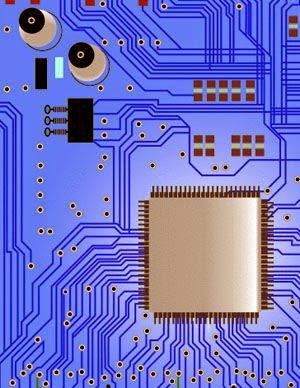
processor definition
A central processing unit, also referred to as a central processor unit,
is the hardware within a computer that carries out the instructions of a
computer program by performing the basic arithmetical, logical, and
input/output operations of the system
While buying a new personal computer, which is the one thing that
matters above anything else? It's the computer's central processing unit
(CPU) or processor. Silicon based chips are the brains of a computer
that control every single one of its functions. The choice of processor
decides the speed of computing and its multitasking ability. If you are
planning to buy a new desktop or laptop computer, you would want to know
which is the best processor to buy in the market.
Every computer chip today is a piece of silicon etched at nanometer (10-9 m) scales to form billions of transistors that together constitute the central processing unit of a computer. Today chip manufacturers have reached a limit in terms of the number of transistors that can be etched on a silicon chip and have instead opted for multicore chips. There are two, four or six chips that form a computer processor today, by working in coordination. This multicore design has helped chip makers like Intel to surpass the clocking frequency barrier and create faster chips.
Best Processors On the Market
The things that you look for in a computer processor are high speed of computing (represented by a high clocking frequency), multitasking, ability to handle intensive 3D graphics, larger cache size (which grants more working memory) and of course reasonable cost. The best processor chip for the money is expected to possess more than one of these features.
There are more than one way of choosing the best computer chip depending on what you are really looking for. There is the topmost processor that is above all others and beats them in all departments of computing and then there is the budget choice, which offers the best at moderate cost. We will consider both types here.
Unarguably the Best Processor to Buy - Intel Core i7 990X
If you are looking for simply the best and cutting edge for your laptop or desktop computer, the Intel core i7 990X is 'The One'. It is simply the best processor on the planet. The most power packed processor launched by Intel till date, this is a beast of a CPU, with 6 cores, 12 threads, 12 MB smart cache and a maximum clocking frequency of 3.46 GHz that can touch 3.73 GHZ on demand, thanks to Intel's Turbo Boost technology. Its 32nm architecture means that it is a leaner, yet more powerful beast than its 45nm build predecessors. Get over quad and dual cores, six core processors are here!
This is unarguably the best computer chip for gaming. Its power as a processor is boosted by Intel's Hyper threading, virtualization, 6.4 GT/s Intel QPI and speed step technologies. It is a processor born to rule and conquer gaming aficionados and power users. With all these features, the price tag on the chip is $999. The price is truly justified by the phenomenal performance and brute force powered by its 6 cores and 12 threads. It is truly one of a kind in the computing market today. In the same Intel core i7 extreme series, there are a few more processors to watch out for, which include (The processors with 'M' in their name are laptop processors):
Intel Core i7 980X (12 MB cache, 3.33 GHz)
Intel Core i7 975X (8 MB cache, 3.33 Ghz)
Intel Core i7 965 (8M Cache, 3.20 GHz)
Intel Core i7 940XM (8M Cache, 2.13 Ghz)
Intel Core i7 920XM (8M Cache, 2.00 Ghz)
Intel Core i7-2960XM (8M Cache, 2.70 Ghz)
Intel Core i7-2920XM (8M Cache, 2.50 GHz)
Best Budget Buys
The only problem with Intel core i7 990X and other processors from that series is the price which sets it beyond the reach of most mortals. However, there is a lot of choice in the lower ranks to choose from. As an AMD versus Intel chips comparison would reveal, top processors belonging to the other chip giant - AMD aren't in the same class as Intel's core i7. They are therefore competing with Intel by offering quad core chips at much lower prices. As the war between AMD and Intel processors rages on, we consumers are the one to benefit from the competition.
Here are some of the best CPUs to look out for, that fall in the medium and low-budget category, for you to choose from.
AMD Phenom II X6 1100T - $265
AMD Phenom II X6 1090T- $169
AMD Phenom II X4 980 - $185
AMD Phenom II X4 975 - $175
AMD Phenom II X4 965 Black Edition 3.4 GHz - $195
Intel Core i5 750 2.66 GHz - $196
Intel Pentium Processor G6950 2.80 - $87(!)
AMD Phenom II X2 550 3.1 GHz - $102
If you are looking for the best computer chip, any one from the above list will meet your requirements. This list of best processors only includes those which offer great computing power at medium to low prices. Though they may not reach the dizzying heights of computing power reached by Intel core i7 990X, they are good enough for most gaming applications, as well as office or home use. Choose one that suits your budget. Going for the best is always the right choice.
Every computer chip today is a piece of silicon etched at nanometer (10-9 m) scales to form billions of transistors that together constitute the central processing unit of a computer. Today chip manufacturers have reached a limit in terms of the number of transistors that can be etched on a silicon chip and have instead opted for multicore chips. There are two, four or six chips that form a computer processor today, by working in coordination. This multicore design has helped chip makers like Intel to surpass the clocking frequency barrier and create faster chips.
Best Processors On the Market
The things that you look for in a computer processor are high speed of computing (represented by a high clocking frequency), multitasking, ability to handle intensive 3D graphics, larger cache size (which grants more working memory) and of course reasonable cost. The best processor chip for the money is expected to possess more than one of these features.
There are more than one way of choosing the best computer chip depending on what you are really looking for. There is the topmost processor that is above all others and beats them in all departments of computing and then there is the budget choice, which offers the best at moderate cost. We will consider both types here.
Unarguably the Best Processor to Buy - Intel Core i7 990X
If you are looking for simply the best and cutting edge for your laptop or desktop computer, the Intel core i7 990X is 'The One'. It is simply the best processor on the planet. The most power packed processor launched by Intel till date, this is a beast of a CPU, with 6 cores, 12 threads, 12 MB smart cache and a maximum clocking frequency of 3.46 GHz that can touch 3.73 GHZ on demand, thanks to Intel's Turbo Boost technology. Its 32nm architecture means that it is a leaner, yet more powerful beast than its 45nm build predecessors. Get over quad and dual cores, six core processors are here!
This is unarguably the best computer chip for gaming. Its power as a processor is boosted by Intel's Hyper threading, virtualization, 6.4 GT/s Intel QPI and speed step technologies. It is a processor born to rule and conquer gaming aficionados and power users. With all these features, the price tag on the chip is $999. The price is truly justified by the phenomenal performance and brute force powered by its 6 cores and 12 threads. It is truly one of a kind in the computing market today. In the same Intel core i7 extreme series, there are a few more processors to watch out for, which include (The processors with 'M' in their name are laptop processors):
Intel Core i7 980X (12 MB cache, 3.33 GHz)
Intel Core i7 975X (8 MB cache, 3.33 Ghz)
Intel Core i7 965 (8M Cache, 3.20 GHz)
Intel Core i7 940XM (8M Cache, 2.13 Ghz)
Intel Core i7 920XM (8M Cache, 2.00 Ghz)
Intel Core i7-2960XM (8M Cache, 2.70 Ghz)
Intel Core i7-2920XM (8M Cache, 2.50 GHz)
Best Budget Buys
The only problem with Intel core i7 990X and other processors from that series is the price which sets it beyond the reach of most mortals. However, there is a lot of choice in the lower ranks to choose from. As an AMD versus Intel chips comparison would reveal, top processors belonging to the other chip giant - AMD aren't in the same class as Intel's core i7. They are therefore competing with Intel by offering quad core chips at much lower prices. As the war between AMD and Intel processors rages on, we consumers are the one to benefit from the competition.
Here are some of the best CPUs to look out for, that fall in the medium and low-budget category, for you to choose from.
AMD Phenom II X6 1100T - $265
AMD Phenom II X6 1090T- $169
AMD Phenom II X4 980 - $185
AMD Phenom II X4 975 - $175
AMD Phenom II X4 965 Black Edition 3.4 GHz - $195
Intel Core i5 750 2.66 GHz - $196
Intel Pentium Processor G6950 2.80 - $87(!)
AMD Phenom II X2 550 3.1 GHz - $102
If you are looking for the best computer chip, any one from the above list will meet your requirements. This list of best processors only includes those which offer great computing power at medium to low prices. Though they may not reach the dizzying heights of computing power reached by Intel core i7 990X, they are good enough for most gaming applications, as well as office or home use. Choose one that suits your budget. Going for the best is always the right choice.
For search: Best Computer Processor, computer, Best Processor, Processor,
How to Manually Remove a Virus

Our computers have a threat from different
types of computer viruses. In this write-up, we will know how to make
our computers free of viruses.
Computers have become an integral part of our life. Along with
computers, Internet has also become an indispensable part. However,
there is a negative side to the Internet technology, which is the
rampant spread of computer viruses. Therefore, computer security becomes
a matter of major concern for every one. Although it is recommended
that we should have an antivirus software installed on our machines,
there are times that we may not have it installed and that is exactly
when the computer may be infested by a software. This brings up the
question, what are the steps to manually remove a virus so that the
machine is not infested with the threatening virus.
Steps to Remove a Virus
You will need some computer programming skills to get rid of the computer virus. You will just need the knowledge of basic syntax. The first step you should take before you start with the computer viruses removal process is to take system back up. It is essential so that in case you delete a wrong file in the process, you will not lose important data. In some cases, the file may be necessary to run the computer system. The data should ideally be backed up in an external device. Once the data has been backed up, you can format the system to get rid of the virus totally. However, it is not recommended that you use the system restore option to get rid of the virus, as this often leads to virus multiplication as opposed to removal.
The other process is a lengthy one which will need technical expertise. In this process, the first step is to identify the virus as there are many different types of computer viruses. To identify the virus you can seek help from various antivirus websites. From these websites you will be able to see the way the particular virus makes files. Now you will have to look for the behavioral pattern of the virus. Once that has been identified, the next step is to go to task manager. From the task manager stop the virus processes so that there is no chance that the virus replicates itself. The next step is to go to the file registry and delete the virus files, taking help from the information you have found from the different websites pertaining to the virus.
Steps to Manually Remove a Trojan Virus
If you do not want to use the options available online for the removal of the Trojan, you will have to undertake the process of removing the virus manually. To remove Trojan virus, you will have to first identify the system files which are infected by the virus. The next step is to erase the files so that normal functioning of the system is possible. You can seek help from online forums or antivirus software websites.
I would recommend that although there are steps one can take to remove the virus manually, it is best to invest in a reputed antivirus to avoid attacks to your system where your data is at risk.
Steps to Remove a Virus
You will need some computer programming skills to get rid of the computer virus. You will just need the knowledge of basic syntax. The first step you should take before you start with the computer viruses removal process is to take system back up. It is essential so that in case you delete a wrong file in the process, you will not lose important data. In some cases, the file may be necessary to run the computer system. The data should ideally be backed up in an external device. Once the data has been backed up, you can format the system to get rid of the virus totally. However, it is not recommended that you use the system restore option to get rid of the virus, as this often leads to virus multiplication as opposed to removal.
The other process is a lengthy one which will need technical expertise. In this process, the first step is to identify the virus as there are many different types of computer viruses. To identify the virus you can seek help from various antivirus websites. From these websites you will be able to see the way the particular virus makes files. Now you will have to look for the behavioral pattern of the virus. Once that has been identified, the next step is to go to task manager. From the task manager stop the virus processes so that there is no chance that the virus replicates itself. The next step is to go to the file registry and delete the virus files, taking help from the information you have found from the different websites pertaining to the virus.
Steps to Manually Remove a Trojan Virus
If you do not want to use the options available online for the removal of the Trojan, you will have to undertake the process of removing the virus manually. To remove Trojan virus, you will have to first identify the system files which are infected by the virus. The next step is to erase the files so that normal functioning of the system is possible. You can seek help from online forums or antivirus software websites.
I would recommend that although there are steps one can take to remove the virus manually, it is best to invest in a reputed antivirus to avoid attacks to your system where your data is at risk.
Types of Computer Security Threats

With the wide scale use of internet, there are different types of computer threats, that the computer networks are susceptible to. Each of these threats can cause potential damage and cause a lot of harm, if the data is lost. It is important to know the different types of threats, so that the data can be safeguarded.
Computer network as well as stand alone systems are susceptible to a
number of computer threats. The damage caused by the threats can cause
very high loss to the company. The danger increases, when the computer
network is connected to the internet. Although there are different types
of threats to computer systems, they have a common bond. They are
designed to trick the user and gain access to the network or the stand
alone systems or destroy the data. Some of the threats are known to
replicate itself, while others destroy the files on the system or some
infect the files itself.
Types of Computer Security Threats
The classification of the types of information security threats is made on the way the information in the system is compromised upon. There are the passive threats and the active threats. The passive threats are very difficult to detect and equally difficult to prevent as well. Then there are the active threats. Since these threats continue to make changes to the system, they are easy to find out and fix as well.
Virus: The most common of the types of cyber threats are the viruses. They infect different files on the computer network or on the stand alone systems. Most people fall prey to the viruses, as they trick the person into taking some action, like clicking on a malicious link, downloading a malicious file, etc. It is from these links and files, that the virus is transmitted to the computer. There are also cases of the viruses been a part of an email attachment, which may be downloaded from the internet. In some cases, the viruses can also spread through infected portable data storage as well. Hence, it is important to have an antivirus on the system, which can not only detect the virus, but be able to get rid of them as well.
Worms: The other common types of internet security threats are the worms. They are actually malicious programs, which take advantage of the weaknesses in the operating system. Like the worms in real life crawl to move from one place to another, similarly the worms in the cyber world also spread from one computer to another and from one network to another. The most prominent feature of the worms is that they are able to spread at very high rates, which can lead the system being at risk of crashing. There is a type of worm, called net worm. These worms replicates itself by sending complete and independent copes of itself over a network, thereby infecting almost all the systems on the said network.
Trojan: This is a different type of computer virus, which is disguised under the garbs of a friend. The Trojans derive their name from the legend. They make their way into the software, which may not be noticed. It is often seen, that the Trojans are a part of the different attachments in emails or download links. In some cases making a visit to certain web pages also puts the computer system at risk.
Spyware: Spyware as the name suggests spy on the network and the computer system. They may be downloaded unintentionally from different websites, email messages or instant messages. In some cases, they may also make their way through different direct file sharing connection. In some cases, clicking on 'Accept User License Agreement', can also put the computer at risk.
Rootkits: The job of the rootkits is to give cover to the hackers. The best or the worst part about rootkits is that they are able to hide themselves from the antivirus software as well, due to which the user is not aware that a rootkit is present on the system. This helps the hacker and he is able to spread malware on the system. Therefore, it is important that one opts for antivirus, which also has a rootkit scanner, which will be able to detect the invasion.
Riskware: They are dangerous applications, who often become a part of software applications. They are often seen as a part of development environment for malicious programs and spread to the software applications. In some cases, these applications can also be used by hackers as additional components to gain access in the network.
Adware: The recent addition to the list of computer threats are the adware. They are actually advertising supported software. It is not uncommon to see different advertisements or pop ups coming up on the computer, when certain applications are being used. They may not pose a lot of threat, but often lower the speed of the computers. There are chances that the computer system may become unstable because of these adware.
Cookies: When we visit a website, there are files due to which the website is able to remember the details of the computer. They are more of a threat to confidentiality as opposed to the data on the computer. In most cases, cookies may be stored on the computer without the consent of the user and data may be stored on them, which is passed back to the website server the next time, one visits the website. The data gathered may be sold to third parties and depending on the interests, which may lead to different advertisements flashing on the screen.
Phishing: Often people appear to get emails from trustworthy organizations, like banks. In some cases, the emails may come from bogus sites, which may resemble the original site or it may superimposes a bogus pop up, due to which confidential data is gathered. They are often a part of different scamming activities and often poses to the financial threats.
These were the main types of computer threats. It is important to be on the look always to ensure that the network and/or standalone systems are protected from the threats. As soon as any of the threats are detected, measures will have to be taken to get rid of them at the earliest, so that the data is protected.
Types of Computer Security Threats
The classification of the types of information security threats is made on the way the information in the system is compromised upon. There are the passive threats and the active threats. The passive threats are very difficult to detect and equally difficult to prevent as well. Then there are the active threats. Since these threats continue to make changes to the system, they are easy to find out and fix as well.
Virus: The most common of the types of cyber threats are the viruses. They infect different files on the computer network or on the stand alone systems. Most people fall prey to the viruses, as they trick the person into taking some action, like clicking on a malicious link, downloading a malicious file, etc. It is from these links and files, that the virus is transmitted to the computer. There are also cases of the viruses been a part of an email attachment, which may be downloaded from the internet. In some cases, the viruses can also spread through infected portable data storage as well. Hence, it is important to have an antivirus on the system, which can not only detect the virus, but be able to get rid of them as well.
Worms: The other common types of internet security threats are the worms. They are actually malicious programs, which take advantage of the weaknesses in the operating system. Like the worms in real life crawl to move from one place to another, similarly the worms in the cyber world also spread from one computer to another and from one network to another. The most prominent feature of the worms is that they are able to spread at very high rates, which can lead the system being at risk of crashing. There is a type of worm, called net worm. These worms replicates itself by sending complete and independent copes of itself over a network, thereby infecting almost all the systems on the said network.
Trojan: This is a different type of computer virus, which is disguised under the garbs of a friend. The Trojans derive their name from the legend. They make their way into the software, which may not be noticed. It is often seen, that the Trojans are a part of the different attachments in emails or download links. In some cases making a visit to certain web pages also puts the computer system at risk.
Spyware: Spyware as the name suggests spy on the network and the computer system. They may be downloaded unintentionally from different websites, email messages or instant messages. In some cases, they may also make their way through different direct file sharing connection. In some cases, clicking on 'Accept User License Agreement', can also put the computer at risk.
Rootkits: The job of the rootkits is to give cover to the hackers. The best or the worst part about rootkits is that they are able to hide themselves from the antivirus software as well, due to which the user is not aware that a rootkit is present on the system. This helps the hacker and he is able to spread malware on the system. Therefore, it is important that one opts for antivirus, which also has a rootkit scanner, which will be able to detect the invasion.
Riskware: They are dangerous applications, who often become a part of software applications. They are often seen as a part of development environment for malicious programs and spread to the software applications. In some cases, these applications can also be used by hackers as additional components to gain access in the network.
Adware: The recent addition to the list of computer threats are the adware. They are actually advertising supported software. It is not uncommon to see different advertisements or pop ups coming up on the computer, when certain applications are being used. They may not pose a lot of threat, but often lower the speed of the computers. There are chances that the computer system may become unstable because of these adware.
Cookies: When we visit a website, there are files due to which the website is able to remember the details of the computer. They are more of a threat to confidentiality as opposed to the data on the computer. In most cases, cookies may be stored on the computer without the consent of the user and data may be stored on them, which is passed back to the website server the next time, one visits the website. The data gathered may be sold to third parties and depending on the interests, which may lead to different advertisements flashing on the screen.
Phishing: Often people appear to get emails from trustworthy organizations, like banks. In some cases, the emails may come from bogus sites, which may resemble the original site or it may superimposes a bogus pop up, due to which confidential data is gathered. They are often a part of different scamming activities and often poses to the financial threats.
These were the main types of computer threats. It is important to be on the look always to ensure that the network and/or standalone systems are protected from the threats. As soon as any of the threats are detected, measures will have to be taken to get rid of them at the earliest, so that the data is protected.
Free Application for Federal Student Aid

For any student hoping to attend college in the coming year, the first place you need to start is by filling out the Free Application for Federal Student Aid that is commonly referred to as FAFSA. The earlier you fill out this form the better as far as your chances of receiving the full amount of financial aid that is available to you as well as to clear up and fix any potential problems that may arise well ahead of the deadline for aid being awarded.
The final date for application changes from year to year and is generally somewhere near the beginning of summer. Earlier is much better than later as far too many students wait until closer to deadline in order to fill out their forms and if you have any questions you are likely to find yourself standing in or calling into longer lines for your answers.
There are a few things you need to know about the FAFSA. Most schools require this form to have been filled out before they will award any financial aid, not just federal financial aid. In other words you should check with your school but you may need to fill out this form even if you are only applying for departmental scholarships and not federal financial aid. It is a good idea to begin at the financial aid office of the institution you plan to attend at any rate to make sure they do not have additional forms that they require you fill out in order to apply with financial aid through the university or college as well as the federal government.
Another thing you need to be well aware of is that you will need to fill out one of these forms for each year that you hope to receive financial aid of any kind. This is not something that is automatically renewed or guaranteed. There are many changes that could affect the amount of money you are eligible to receive as well as whether or not you are eligible to receive federal funds at all on any given academic year. For this reason you must apply for aid for each year that you attend.
Another thing that you must remember is that while a subsidized student loan doesn't been to accrue interest until you graduate or cease to be enrolled for the required hours, an unsubsidized student loan begin accruing interest from day one. This means that you will owe a substantial amount of money in interest upon graduation if you take out an unsubsidized student loan in order to pay for educational expenses.
Student loans make college educations possible for many people who would not otherwise have the opportunity to attend college. At the same time there are many people, who neglect to use these loans responsibly, which is the beginning of irresponsible spending habits that can plague people for the remainder of their lives. Take great caution that you use your student loans for their intended purpose and use them wisely.
The FAFSA also enables you to apply for Federal Pell Grants and Federal Work Study programs in addition to student loans. Of the three mentioned above, student loans should be a last resort rather than a first. The amount of money available can prove to be quite tempting so be very careful and read all the terms before signing up for any and all financial aid. Your high school, college financial aid office, and the Internet are all excellent sources for information on scholarships, grants, loans, and work study programs for which you may qualify.
Vacation And Credit Cards

Each and every year, many of us go on vacations. Vacations are a great way to relax, and get away from the everyday pressure of life. Over half of all American families take their vacation between April and September, meaning that they spend a lot of money on travel. Whether it’s international or domestic travel, you can spend a fortune before you actually realize it.
As we all know, traveling with cash or checks isn’t always a wise decision. Renting cars, flying in airplanes, or checking into hotels is a much easier task if you have a credit card. Even though you may decide to use your credit cards for big purchases only, you’ll find that the traveling experience will be a much smoother process.
Unlike cash or checks, credit cards make handling your documents and receipts much easier. If you purchase something, records from that purchase will be made with your credit card manufacturer, which you can always fall back on if something happens. Things can go wrong without notice, so you’ll always want a backup plan or something to have as proof in the event of a disaster. With a credit card, all you need to do is look back at your statement and you’ll find everything that you purchased in one easy to find location.
Credit cards are also much easier to handle and keep track of than cash. If you decide to go to a theme park or a resort, you’ll find that cash can be a bit bulky to handle. Carrying a large amount of cash can be hard to keep track of, even though it isn’t recommended. Credit cards use up less space, and you can keep them in your pocket. When you need to pay for something, you don’t need to count through your cash, simply hand over your credit card and sign your receipt.
If you don’t have any credit cards, you can always get them for vacation purposes only. There are many benefits to having credit cards, besides the fact of them being easier to keep track of. There are many different credit cards out there to choose from, including those that will give you cash back or rewards when you make a purchase. Cash back is normally a small percentage of what you spend, and is given to you at the end of the month.
Some credit cards will give you reward points for every dollar you spend, which can be redeemed with several merchants offering a variety of products. Although cash back is always a great thing, many people find reward cards to be just as good. You can enjoy your vacation, buy just about anything you want, and know that the money you spend will help you to buy other things that you may need when your vacation is over. Actually, can you think of this as having your cake and eating it to.
All in all, credit cards can make your vacation easier than ever before. You can earn rewards and cash back with purchases you make using your card. Although you may think cash is the preferred way to go, there are several merchants who actually prefer credit cards. They are more professional, and easier for you to handle than cash or checks. They are easy to obtain as well, providing you have good credit. If you don’t have a credit card, you should look into getting one before you take your next vacation. All you need to do is look for your favorite company online and apply through their website - you’ll normally receive a response in a matter of minutes.
How to edit pdf file
Tip: PDF files are for viewing not editing, if you have the original file use it instead of following any of the below suggestions.

The PDF file format was originally created by Adobe in the early ’90s and there are now over 700+ million PDF documents on the Internet according to Google (search for filetype:pdf).
There are several reasons why the PDF file format is so popular for exchanging all sorts of documents including presentations, CAD Drawings, invoices and even legal forms.
We will primarily focus on tools that let you alter the actual contents of a PDF file>. If you are looking to manipulate the PDF file structure itself like rearranging pages or merging multiple PDFs into one, please refer to this detailed Adobe PDF Guide.
You can perform such edits in a PDF easily with PDFEscape.com, an online PDF editor that is free and also lets you edit password-protected PDF documents in the browser.
With PDF Escape, you can hide* parts of a PDF file using the whiteout tool or add annotations with the help of custom shapes, arrows, text boxes and sticky notes. You can add hyperlinks to other PDF pages / web documents.
[*] Hiding is different from redaction because here we aren’t changing the associated metadata of a PDF file but just hiding certain visible parts of a PDF file by pasting an opaque rectangle over that region so that the stuff beneath the rectangle stays invisible.
The tool can also be used for removing PDF passwords as well as for encrypting PDF documents such that only users who know the password can read the contents of your PDF files. And since this PDF metadata plus bookmarks editor can be executed from the command line, you can use it to update information in multiple PDF files in a batch.
[*] If you planning to post your PDF files on the web, you should consider adding proper metadata to all the files as that will help improve the organic rankings of your PDF files in Google search results.
Then edit these converted PDFs in Microsoft Office (or Google Docs) and export the modified files back into PDF format using any PDF writer.
If your PDF document is mostly text, you may use the desktop version of Stanza to convert that PDF into a Word document. If the document includes images, charts, tables and other complex formatting, try the online PDF to Word converter from BCL Research or the one from NitroPDF – the former offers instant conversion while the latter service can take up to a day though its yields more accurate results.
First there’s PDF XChange, a free PDF viewer and editor that you also may use for typing text directly on any PDF page. PDF XChange also supports image stamps so you may use the tool for signing PDF files or for inserting images anywhere on a PDF page.
Then you have Inkscape, a free vector drawing tool (like Adobe Illustrator) that can natively import and export PDF content.
For search: How to edit pdf file , Edit pdf file, pdf file editor, pdf file converter
The PDF file format was originally created by Adobe in the early ’90s and there are now over 700+ million PDF documents on the Internet according to Google (search for filetype:pdf).
There are several reasons why the PDF file format is so popular for exchanging all sorts of documents including presentations, CAD Drawings, invoices and even legal forms.
- PDF files are generally more compact (smaller in size) than the source document and they preserve the original formatting.
- Unlike Word and other popular document formats, the content of a PDF file cannot be modified easily. You can also prevent other users from printing or copying text from PDF documents.
- You can open a PDF file on any computer or mobile device with free software like Adobe Acrobat Reader. Google Chrome can read PDFs without requiring plugins and it can create PDFs.
Edit PDF Files using Free Alternatives to Adobe Acrobat
While PDF Files are “read only” by default, there are ways by which you can edit certain elements* of a PDF document for free without requiring the source files or any of the commercial PDF editing tools like Adobe Acrobat.We will primarily focus on tools that let you alter the actual contents of a PDF file>. If you are looking to manipulate the PDF file structure itself like rearranging pages or merging multiple PDFs into one, please refer to this detailed Adobe PDF Guide.
An Online PDF Editor for Basic Tasks
Sometimes you need to make minor changes to a PDF file. For instance, you may want to hide your personal phone number from a PDF file before uploading it online or may want to annotate a page with notes and freehand drawings.You can perform such edits in a PDF easily with PDFEscape.com, an online PDF editor that is free and also lets you edit password-protected PDF documents in the browser.
With PDF Escape, you can hide* parts of a PDF file using the whiteout tool or add annotations with the help of custom shapes, arrows, text boxes and sticky notes. You can add hyperlinks to other PDF pages / web documents.
[*] Hiding is different from redaction because here we aren’t changing the associated metadata of a PDF file but just hiding certain visible parts of a PDF file by pasting an opaque rectangle over that region so that the stuff beneath the rectangle stays invisible.
Change Metadata of PDF Files
If you would like to edit the meta-data associated* with a PDF document, check out Becy PDFMetaEdit. This is a free utility that can help you edit properties of a PDF document including the title, author name, creation data, keywords, etc.The tool can also be used for removing PDF passwords as well as for encrypting PDF documents such that only users who know the password can read the contents of your PDF files. And since this PDF metadata plus bookmarks editor can be executed from the command line, you can use it to update information in multiple PDF files in a batch.
[*] If you planning to post your PDF files on the web, you should consider adding proper metadata to all the files as that will help improve the organic rankings of your PDF files in Google search results.
Edit the Text of a PDF File
If you want to edit the text in a PDF file but don’t have access to the source documents, your best bet is that you convert the PDF file into an editable Word document or an Excel spreadsheet depending on the contents of the PDF.Then edit these converted PDFs in Microsoft Office (or Google Docs) and export the modified files back into PDF format using any PDF writer.
If your PDF document is mostly text, you may use the desktop version of Stanza to convert that PDF into a Word document. If the document includes images, charts, tables and other complex formatting, try the online PDF to Word converter from BCL Research or the one from NitroPDF – the former offers instant conversion while the latter service can take up to a day though its yields more accurate results.
Advanced PDF Editing (Images, text, etc.)
Now that you know the basic PDF editing tools, let’s look at another set of PDF editors that are also free but can help you do some more advanced editing like replacing images on a PDF file, adding signatures, removing blocks of text without breaking the flow of the document, etc.First there’s PDF XChange, a free PDF viewer and editor that you also may use for typing text directly on any PDF page. PDF XChange also supports image stamps so you may use the tool for signing PDF files or for inserting images anywhere on a PDF page.
Then you have Inkscape, a free vector drawing tool (like Adobe Illustrator) that can natively import and export PDF content.
For search: How to edit pdf file , Edit pdf file, pdf file editor, pdf file converter
Computer Diagnostics

The diagnostics that are associated with computers can help to identify any problem or failure that computers show when they are having problems. Diagnostics are used to test out the computer system, which includes both the BIOS and memory, software, and even the hardware that is attached to the computer.
The most common types of problems will occur when your computer is down to very low resources, which can either be a low amount of RAM, or a low disk space. These conditions are very common, and generally result in your computer running very slow. This can easily be fixed, all you have to do is defrag your hard drive, and get rid of some programs and files that you no longer use or need.
Almost all types of computer diagnostic software can find and fix just about any problem that you are having. It normally starts off with a BIOS examination, and goes on from there. PC diagnostics
software can determine a lot from the BIOS, from the common settings to those that have a major impact on both boot up and performance.
No matter what you do, you should never modify or tamper with the BIOS settings, as it can lead to serious problems. If you do plan to modify or mess with your BIOS, you should always create a backup first, just in case something goes wrong. The BIOS settings can be very tricky, although they are responsible for a lot to do with your computer. If you have never been in the BIOS before, you really shouldn’t be modifying anything inside of it.
Depending on the diagnostics program that you are using, there will be several different features available. Right now, two of the most popular are Norton Systemworks and PC Doctor. Both of these programs offer full diagnostics software, good for fixing just about any software related computer program you can imagine.
Once you run the program, you’ll be able to select the diagnostic test that you are planning to run. Some offer you a full system scan, which will scan your entire computer and then display any problems that you having. After displaying any problems, the software will normally give you an option to go ahead and fix it. As long as the problem is nothing serious, the diagnostic software can generally fix it.
The more complicated problems, such as hardware failures or hard drive crashes, are a totally different story. They will require a technician who is very experienced, that can rebuild the hardware. Diagnostic software can report hardware problems to you, although most of the time it is unable to fix it.
There are other computer diagnostic software that you run after starting the computer or rebooting, that will check everything from BIOS. These types are great, although the types such as Norton and PC Doctor are by far superior. They offer far more features, including defragment, cache cleaner, and the option to delete your temporary Internet files. These features are great to have, especially if you aren’t the technical type.
For more reasons than one, computer diagnostic software is the ideal way to find and prevent problems with your computer. Norton Systemworks offers you Ghost as well, which is the perfect way to back up your data. You can back up certain files, or just go ahead and back up your entire hard drive. Systemworks and Ghost are very easy to use, even if you are completely new to computers. For everything they offer you - computer diagnostic programs are the ideal way to prevent problems before they happen.
Professional Data Recovery Services
There are several data recovery software programs out there that are intended to assist you with recovering lost data. Even though they may be a big help with some cases, there are other times when they don’t do anything. In the event of software programs not being able to recover your lost data, you can count on professional services to be there for you.

As we all know, the process of data recovery is very time consuming and requires quite a bit of technical prowess in order to recover the data that has been lost. If the recovery is performed in the wrong way, it can lead to the hard drive being damaged beyond repair, and quite possibly the information that was stored on the hard drive to be lost forever.
Even though you may know quite a bit about computers and hard drives, data recovery is something that is best left to professionals. They have all the equipment and knowledge to recover files, without bringing more damage to the hard drive. They can also recover any type of file that was on your hard drive, even preview the files before they recover them. This way, they will be able to go over with you which files you wish to be recovered.
Professional services can also offer you is the emergency boot media. This methods allows you to recover any data from computers that cannot boot Windows due to a failure, virus, damage to the hard drive, or loss of data. This is ideal for times when your computer will start up, although it doesn’t want to load Windows. Normally, this method can bring everything back to your hard drive, in a matter of minutes.
Professional data recovery specialists offer a variety of services and skills to help you recover any data that you have lost. They work with hard drives on a daily basis, and know everything that they can and can’t do. Even though you may be able to do it yourself, you also have to look at the time it takes as well. Professional services have the time to put into the recovery process, as they do it for a living. Recovery takes a lot of time - which is something that many of us simply do not have.
Anytime your hard drive crashes or you experience a loss of data, you can always count on professional data recovery services to retrieve your data. Although it may take a few days or even a few weeks, you’ll get your data back. They can retrieve any or all of your files, no matter how bad the hard drive may be damaged. Even though it may appear there is no hope for your lost files - professional data recovery services can make it happen.
Red more
How to recover your Files Correctly
how to recover your Files Correctly

Throughout the world of computers, it’s simply amazing just how many people are scared to death of losing their data. Most of those who are scared, don’t give a second thought to backing up their data. Even though the thought may be the same, most people are worried more about losing their data than actually backing it up - which can prove to be a downfall in the face of disaster.
The process of backing up files is done by using servers, floppy disks, CD, DVD, external hard drives, or other methods to keep the data protected. This way, when something happens to your hard drive and you lose your information, you’ll have the information backed up so that you can easily access it again. Data that is important, such as tax files or business records should always be backed up, to ensure that nothing happens to it.
If you are using Windows as your operating system, it will be a lot easier to back up your files. Windows XP has a back up facility in it, so that it can make things a lot easier when you create your backups. If data that is stored on hard drives with XP becomes lost, Windows will immediately fetch the file from another drive or area where it has been stored as a back up. This is a very useful technique, although it still has to be practiced to ensure that you understand how it works. Although it may be very useful, it isn’t as safe as other options.
In order to back up your data and programs in a safe and efficient manner, you’ll need to use some of the more reliable methods, such as external hard drives or servers. Offsite backups are great as well, as the data you backup isn’t left around your office, it is instead entrusted with a company who will ensure that it stays protected.
No matter which method or methods you have decided to use for backing up your data, you’ll be happy to know that they are all easy to use. CD and DVD backups are easy to create, all you need is the software installed on your computer to create the backups with. Servers are easy to use as well, all you have to do is upload your data to a server, then log into the server anytime you need to have access to the data.
All in all, creating backups of your data and information is the perfect way to ensure that you always have it in the event of a disaster. Disasters can happen at any time, which is why you should always back up your data anytime you have something new or something that you haven’t backed up yet.
how to configure linux vlan

VLAN is an acronym for Virtual Local Area Network. Several VLANs can co-exist on a single physical switch, which are configured via Linux software and not through hardware interface (you still need to configure actual hardware switch too).
Hubs or switch connects all nodes in a LAN and node can communicate without a router. For example, all nodes in LAN A can communicate with each other without the need for a router. If a node from LAN A wants to communicate with LAN B node, you need to use a router. Therefore, each LAN (A, B, C and so on) are separated using a router.
VLAN as a name suggest combine multiple LANs at once. But, what are the advantages of VLAN?
- Performance.
- Ease of management.
- Security.
- Trunks.
- VLANs give you the ability to sub-divide a LAN for security purpose.
- You don't have to configure any hardware device, when physically moving server computer to another location and more.
A note about your LAN hardware
- To be able to use VLANs you will need a switch that support the IEEE 802.1q standard on an Ethernet network.
- You will also need a NIC (Network Interface Card) that works with Linux and support 802.1q standard .
Linux VLAN configuration issues
I am lucky enough to get a couple of hints from our internal wiki:- Not all network drivers support VLAN. You may need to patch your driver.
- MTU may be another problem. VLAN works by tagging each frame i.e. an Ethernet header extension that enlarges the header from 14 to 18 bytes. The VLAN tag contains the VLAN ID and priority.
- Do not use VLAN ID 1 as it may be used for admin purpose.
Setting up 802.1q VLAN tagging by loading 8021q Linux kernel driver
First, make sure that the Linux kernel driver (module) called 8021q is loaded:# lsmod | grep 8021qIf the module is not loaded, load it with the following modprobe command:
# modprobe 8021qMethod #1: CentOS/RHLE/Fedora Linux VLAN HowTo
I am using RHEL/CentOS Linux with VLAN ID # 5. So I need to copy file /etc/sysconfig/network-scripts/ifcfg-eth0 to /etc/sysconfig/network-scripts/ifcfg-eth0.5# cp /etc/sysconfig/network-scripts/ifcfg-eth0 /etc/sysconfig/network-scripts/ifcfg-eth0.5Now, I've one network card (eth0) and it needs to tagged network traffic for VLAN ID 5.
- eth0 - Your regular network interface
- eth0.5 - Your virtual interface that use untagged frames
# vi /etc/sysconfig/network-scripts/ifcfg-eth0.5Find DEVICE=eth0 line and replace with:
DEVICE=eth0.5Also, append the following line:
VLAN=yesMake sure you assign correct IP address using DHCP or static IP. Remove gateway entry from all other network config files. Only add gateway to /etc/sysconfig/network file. This whole configuration may sound complicated. So I am including sample configurations files for you:
/etc/sysconfig/network-scripts/ifcfg-eth0.5 file
# VLAN configuration for my eth0  with ID - 5 #
DEVICE=eth0.5
BOOTPROTO=none
ONBOOT=yes
IPADDR=192.168.1.5
NETMASK=255.255.255.0
USERCTL=no
NETWORK=192.168.1.0
VLAN=yes
/etc/sysconfig/network-scripts/ifcfg-eth0 file
# Actual configuration for my eth0 physical interface ##
DEVICE=eth0
TYPE=Ethernet
BOOTPROTO=none
ONBOOT=yes
Finally, restart networking service on a CentOS/RHEL/Fedora Linux, type:
# /etc/init.d/network restartOR
# service network restart
NOTE:
If you need a second VLAN i.e. you need to configure for VLAN ID 2 then
copy the /etc/sysconfig/network-scripts/ifcfg-eth0 to
/etc/sysconfig/network-scripts/ifcfg-eth0.2 and do the above procedure
again.
Method #2: Using the vconfig command
Above method is perfect and works with a Red hat Enterprise Linux / CentOS / Fedora Linux without any problem. However, you will notice that there is a command called vconfig. The vconfig program allows you to create and remove vlan-devices on a vlan enabled kernel. Vlan-devices are virtual Ethernet devices which represents the virtual lans on the physical lan. This is yet another method of configuring VLAN. To add VLAN ID 5 with following command for eth0 interface:# vconfig add eth0 5The vconfig add command creates a vlan-device on eth0 which result into eth0.5 interface. You can use normal ifconfig command to see device information:
# ifconfig eth0.5Use ifconfig command to assign IP address to vlan interfere:
# ifconfig eth0.5 192.168.1.100 netmask 255.255.255.0 broadcast 192.168.1.255 upTo get detailed information about VLAN interface, type:
# cat /proc/net/vlan/eth0.5If you wish to delete VLAN interface use delete command as follows:
# ifconfig eth0.5 down
 # vconfig rem eth0.5
See vconfig(8) Linux man page for more information on syntax and examples.
Method #3: Create the VLAN device using the ip command
Use the ip command as follows for the interface eth0, and the vlan id is 5:# ip link add link eth0 name eth0.5 type vlan id 5
# ip link
# ip -d link show eth0.5You need to activate and add an IP address to vlan link, type:
# ip addr add 192.168.1.200/24 brd 192.168.1.255 dev eth0.5
 # ip link set dev eth0.5 up
All traffic will go through the eth0 interface bith with a BLAN tag 5. Only VLAN aware devices can accept the traffic, otherwise the traffic is dropped.
How can I remove VLAN ID 5?
Type the following commands# ip link set dev eth0.5 down
# ip link delete eth0.5How do I make above VLAN configuration permanent on a Debian or Ubuntu based system?
Edit the /etc/network/interfaces file, enter:$ sudo vi /etc/network/interfacesUpdate configuration as follows:
## vlan for eth0 with ID - 5 on a Debian/Ubuntu Linux##
auto eth0.5
iface eth0.5 inet static
    address 192.168.1.200
    netmask 255.255.255.0
    vlan-raw-device eth0
Save and close the file.


