.
Showing posts with label sd card. Show all posts

How to Recover Deleted Files from Android SD Card

How to Recover Photos from Android and Samsung Galaxy Phone

hone
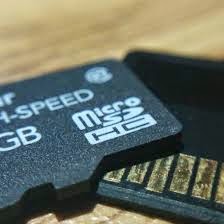
Most Samsung Galaxy phones, or Android Smartphones save the photos and movies taken by the phone camera on a microSD card inside the phone. Recovering lost photos from phone microSD card has a very high success rate if you have not taken many new pictures on the same card.

Requirements:

A microSD card reader (or a MicroSD to SD Adapter and a SD card reader).
A Windows PC or Mac computer.

Supported Cards: microSD, microSDHC, microSDXC, and SD cards
Supported Phones: Samsung Galaxy Series (including S2, S3, S4 ...), Note Series, HTC Phones, Motorola Droid Phones, Google Nexus Phones, LG Android Phones and Smartphones.


Step 1 - Take the microSD card out of the phone if you have a card reader

First, please turn off the phone to prevent possible data loss when you take out the memory card. After the phone is powered off, you may flip the phone face down, open the battery cover of the phone (if any lock of the cover, please unlock it per the instruction on the phone manual), take out the battery, then eject the MicroSD card from the phone.
How to Recover Deleted Files from Android SD Card
Step 2 Step 2 - Connect the microSD card to your computer

If you have a MicroSD card reader, that is great! You may simply insert the microSD card to your microSD card reader and connect it to your computer using a USB cable. If you only have a SD or SDHC card reader, a microSD to SD card adapter is required. Most microSD cards bundle with a "microSD adapter" in the product box, which can convert a microSD card to a standard SD card. You may then use a SD card reader or your computer's built-in SD card reader slot to connect the card to your computer. After you connect the microSD card to your computer, a new drive letter should appear in "My Computer" (for Windows).
How to Recover Deleted Files from Android SD Card Step 3 - Using CardRecovery software to perform the recovery
You may download the microSD card recovery software - CardRecovery from

Windows: http://adf.ly/po4nv
Mac: http://adf.ly/po4ow
Install it to your computer following the easy installation wizard, then launch the program. On step 1 of CardRecovery, you may choose the drive letter of your microSD card (card reader), choose "Phone Camera" on the second option, and check the "Photos" and "Videos" options, then click "Next" to perform a fully automatic scan on the memory card.
How to Recover Deleted Files from Android SD Card
After the scan completes, CardRecovery will list all the recoverable pictures and videos for your preview (it usually takes 10 - 30 minutes for the scan per the capacity of the microSD card). You may then select the pictures that you need (by default, all the recoverable photos are selected) and recover them. The recovered photos will be saved to a folder on your hard drive instead of the SD card to avoid data writing over.

Finally, Safely remove the microSD from your computer, put it back to your phone, install the phone battery, close the battery cover and recovery completes.
If you do not have a card reader, you may try to connect the android phone directly to your computer using USB cord provided with the phone. Many android phones have an option to allow the phone to connect as a "Mass Storage". If you have no way to allow the phone to appear as a drive letter, it is recommended to purchase a SD card reader from online shops or computer stores. That is cheap and easy.
If your photos were saved in the internal memory of the phone:
To recover photos from internal memory of the phone, it is more difficult, or in some cases, it is not possible.
If your phone's Android version is older than 4.0 (to check Android version, from any home screen of the phone, touch Menu > Settings > About Phone), you may try to connect the phone to your computer, then enable the "Mass Storage" option in phone settings or connection settings. If it can appear as a drive letter, you may use CardRecovery to scan the drive letter to recover the lost photos.

If your phone's Android version is 4.0 or later, usually the internal memory of the phone cannot appear as a drive letter in "My Computer" when it is connected, so data recovery software including CardRecovery is unable to access and recover the deleted photos from the internal memory or internal storage. Extra technical steps are needed to make the internal memory of the phone appear as a drive letter, such as downloading and installing third-party "Mass Storage" app on the android phone, or performing low level configuration on the phone, but that may cause further data loss and void the phone warranty so it is not recommended for ordinary users.

How to Recover Deleted Files from Android SD Card


Step 1. Run the program and connect Android to the computer

Download, install and run the program on your computer. Connect your Android phone with computer, and move to the next step.

- See more at: http://www.android-recovery-transfer.com/recover-files-from-sd-card.html#sthash.LFQQNNjg.dpuf

How to Access Failed SD Cards

Although SD cards -- often used in cameras, computers and video game systems -- are convenient for storing large amounts of data, the failure or corruption of these "Secure Digital" devices can result in a frustrating loss of data for your small business. However, there are a few methods that help recover damaged files or allow you to format the card for further use.


 Step 1
 How to Access Failed SD CardsEnsure that the SD card is not write-protected. Sometimes the memory card becomes locked accidentally and this makes the disk seem unusable. Check the switch on the side of the card, typically labeled "Lock." Move the switch to the opposite side so that it is unlocked. Insert the card again and check for files.
 
Step 2Attempt to repair the card. Click Start, then click "My Computer." Select the drive for the card, then right-click. Select "Properties" on the pop-up menu, then click the "Tools" tab. Click "Check now" to scan the disk for errors.
Step 3Download a file recovery program. Programs such as EaseUS, Zero Assumption Recovery and SanDisk's Rescue Pro can help locate and restore corrupted files thought to be lost. Although some programs charge a fee, many offer free trials. Recovering precious photos of loved ones or an important, time-sensitive document can be worth the cost.

Step 4Format the card. Sometimes scanning the card for errors will not repair the issue and recovery programs do not find your files. Although the data is lost, formatting the card often fixes the problem and you can use it to store new information. To format the card, locate the drive using "My Computer" and right-click to bring up the options menu. Select "Format," then click "Start."


Source  smallbusiness.chron.com/access-failed-sd-cards-46959.html

How to recover files from an SD card

We show you how to get files off a corrupt SD card. How to recover photos and other data from an SD card that has stopped working.


How to recover files from an SD card

Expandable storage such as SD cards are great. They can make your phone or camera a much larger and more versatile beast. But when a card corrupts you can lose a lot. Here we've focussed on recovering photos: apps you can reinstall, and if they come from a legal source music files can be replaced free of charge. But in any case the principles are the same.

Here's what to do if your trusty SD card has stopped working. First of all, don't format the disk if you want to retain any of the photos on it. And unless you have a lot of valuable data that you absolutely need to get back, we'd caution against employing a third-party data-recovery company. At least not before you have tried the following.

How to recover files from a corrupt SD card

You will need some specialist recovery software. We were recommened a program called ZAR (Zero Assumption Recovery). Other similar programs are available, but ZAR worked well for us and is free for this purpose.

Install ZAR, then insert the damaged SD card into your PC's card reader. Launch ZAR. (You may have to disable your PC's security software, in which case we recommend you also disable the internet connection).
When prompted, click the Image Recovery (Free) option. This will help you to recover photos from an SD card.

ZAR will now look for devices that are installed, and you need to point it toward the offending SD card. Select the correct disk and click Next. ZAR will now analyse your SD card. This will take a few minutes.
Once this is complete you'll see a list of the recovered files. On most SD cards the chances are that clicking the 'Root' checkbox will select all the images. Click Next and you can then select the folder into which recovered files will be placed. By default this will be the same as the folder your chose to save (so 'Root', in all likelihood).

One important point: you will be asked to select a destination folder for the recovered files. Make sure you choose one on your PC's hard disk and not back on to the corrupt SD card. The latter option will help you not one jot!

It will take a few minutes for the files to copy across. Once this is complete browse to the destination folder you selected. You should find most if not all of the files you wanted to rescue.